Information Technology
Office 365 FAQ
- On the top of the Goodwin University homepage click on Current Students.
- Click on the Check Your Student Email envelope icon.
- You will be redirected to the Office login page.
To login to your Office 365 student email account, you have to use these credentials:
Username: Student ID@student.goodwin.edu, e.g. AB1234567@student.goodwin.edu
Password: myNavigator password, e.g. gw1234
If you have forgotten your student ID, contact the IT help desk at 860-727-6743 and you will be assisted with that request.
Passwords must be at least 6 characters, either digits, letters, or a mixture of them, e.g. gw1234. Students are initially assigned a generic password which can be changed later by contacting the IT office at 860-727-6743. Students cannot reset their password by themselves.
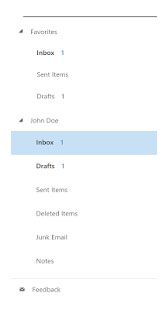
To retrieve a message that you deleted accidentally, look under the Deleted Items folder.
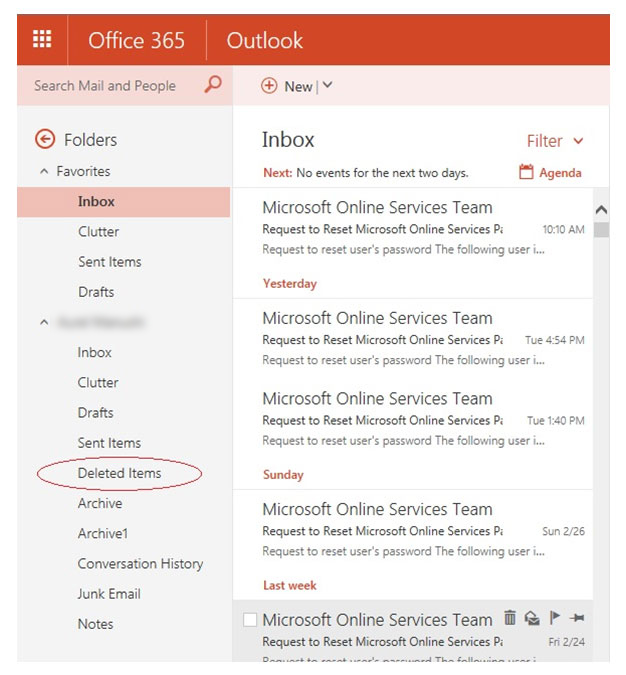
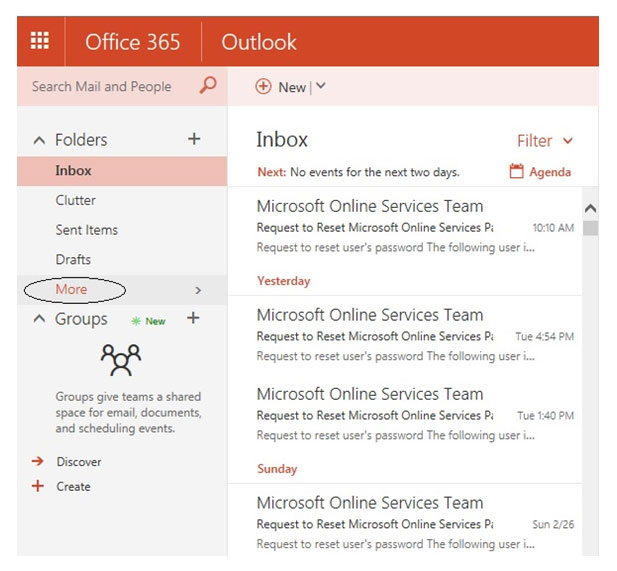
The Deleted Items folder is listed below your main Inbox folder. To find the Deleted Items folder, sometimes you may need to expand the More link, shown below:
- Sign into Office 365 with your student account credentials.
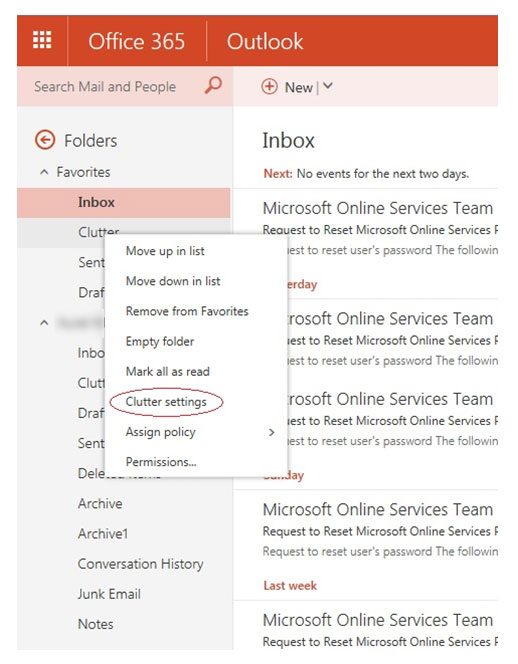
- Once you are logged in, right-click on the Clutter folder in the left hand accordion-item, and then select Clutter settings.
- Uncheck the box for Separate items identified as clutter, and then click the Save button.
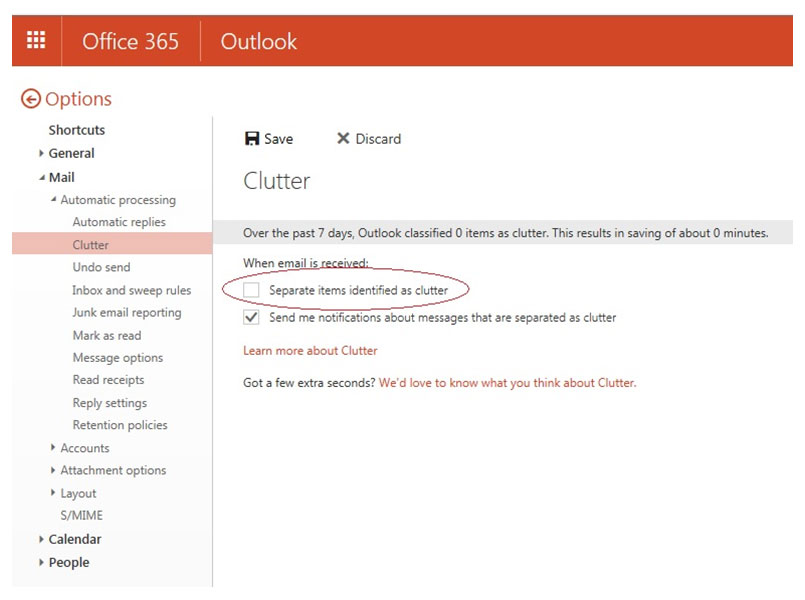
The Clutter folder will still remain in Outlook even after you turn the feature off, but your mail will not be separated anymore.
Your student email address is different from your student login address. Your email address format is: first initial of your first name and your full last name followed by: @student.goodwin.edu. To find your email address, you have to access your student email first.
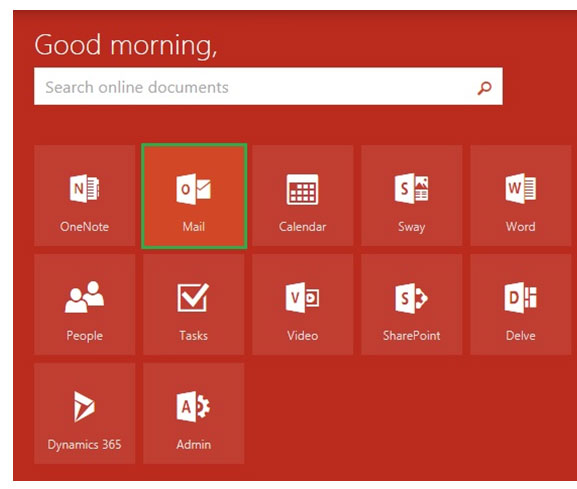
Once there, you can click on the person icon with your full name on the top right corner and then you can see My Accounts pop-up window comes up and your student email address is listed there.
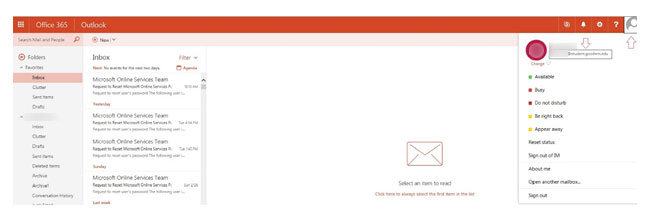
- Login to your Office 365 student account. Once logged in, you should see a screen similar to this:
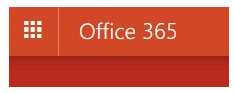
- ** If you are directly sent to your E-Mail App just click on the Office 365 button on the top left corner and it will bring you to the home screen. **
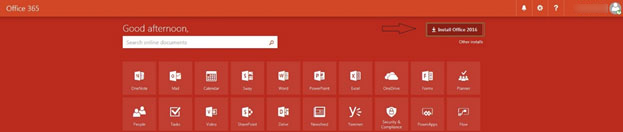
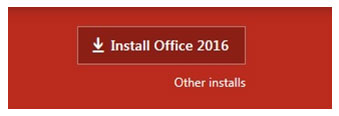
- Once you are looking at the Office 365 home screen, look for the Install Office 365 button in the top right corner.
- Click on INSTALL OFFICE 2016 button. This will start the download and install of MICROSOFT Office 2016 onto your computer. (Any computer that you are using will be automatically detected for compatibility).
Note: At this point you must stay ONLINE, DO NOT shut down, or restart your computer until the installation is finished!
For Mac users, this will install Office 2016 version which is the LATEST version that is compatible with Mac computers.
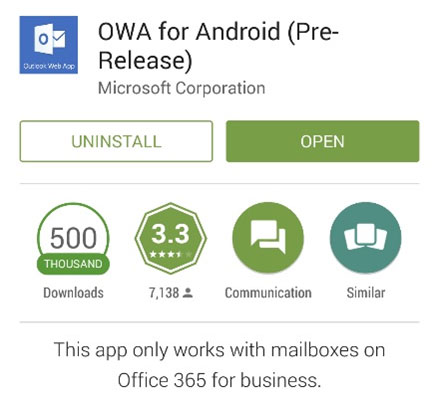
- Open the Play Store app (Android phone) or Apple Store (Apple phone).
- In the search bar, type OWA, download and click open once the installation has completed (the example used is for Android phones).
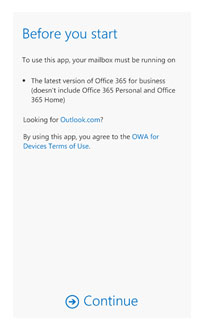
- Once you have downloaded the app, you will be prompted to click Continue.
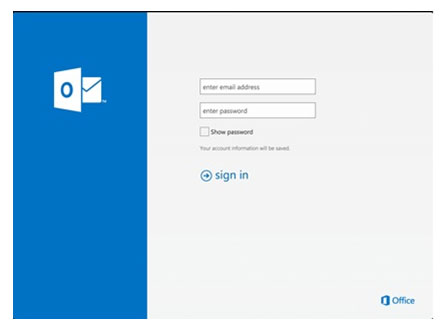
- Next type your username and password. Here is an example on how to login:
Username: StudentID@student.goodwin.edu
Password: Sonisweb PIN - After you’ve clicked the sign in button, it will bring you to the following screen: Finding your server (this may take a moment)
- Once the connection has been established. You will be taken to a series of helpful tips asking you to swipe to the next page. At the last page, it will ask you to go to Inbox.
- Once you’ve clicked on Inbox, it will take you to your student email.
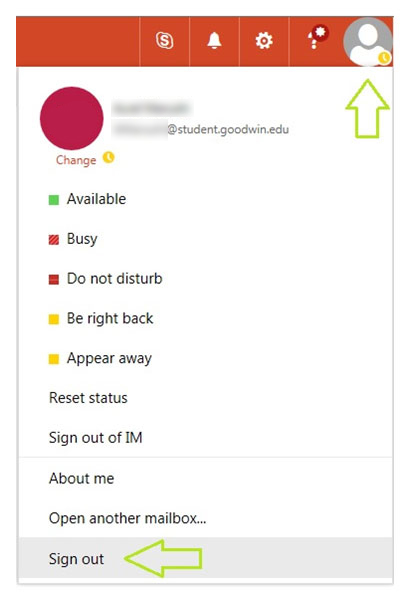
- On the top right corner click on person icon that has your full name on the left of it.
- Under My Accounts title, click on the Sign Out link.
- Once you have clicked this link, it is recommended to btn-close your browser as well.
You can contact the IT Help Desk at 860-727-6743 and you will be assisted to find or reset your Office 365 password.
You can also email the IT Help Desk at: ITHelpdesk@goodwin.edu.
IT Support hours are:
Monday-Thursday 7 a.m.-9 p.m.
Friday 7 a.m.-6 p.m.
Saturday 8 a.m.-12 p.m.